The best drawing tablet for artists should match your workflow, workspace, and preferred level of control. Some creators want a portable standalone device, while others prefer a pen display or a screen-free tablet connected to a computer.
This roundup compares 10 notable options across those categories, focusing on pressure sensitivity, display quality, shortcut controls, compatibility, and value for digital illustration, design, and photo editing.
Best 10 Drawing Tablet for Artists Picks for 2026
Best Standalone Pick

- Standalone Android 14 design
- 16K pressure-sensitive stylus
- 12.2-inch paper-like display
Best For: Portable, computer-free digital art
Best Compact Computer Display

- 11.6-inch Full HD IPS display
- 8,192-level battery-free pen
- Six programmable keys and touch bar
Best For: Computer-connected drawing and online teaching
Best Workflow Controls

- 13.3-inch laminated Canvas Glass display
- 16K pen with three side buttons
- Dual dial and five shortcut keys
Best For: Color-focused illustration and design workflows
Best Beginner Drawing Pad

- 10 × 6.25-inch drawing area
- 16K battery-free stylus with tilt
- Eight customizable shortcut keys
Best For: Beginners and portable computer-based sketching
Best Portable Pick

- Compact 6 x 4-inch active area
- Battery-free pen with 8,192 pressure levels
- Six customizable shortcut keys
Best For: Traveling artists, students, and beginners
Best Screen Tablet

- 13.3-inch laminated FHD display
- 16,384 pressure levels and 60° tilt
- Dial plus eight customizable shortcut keys
Best For: Artists who prefer drawing directly on screen
Best for Shortcuts

- Large 10 x 6.25-inch working area
- 28 programmable controls
- Battery-free pen with tilt support
Best For: Illustrators and artists needing space and shortcuts
Best with Extra Features

- Lightweight 1.58-pound pen display
- 16K pressure with tilt support
- Dual dials and 99% sRGB color
Best For: Portable sketching, illustration, and student workflows
Best Color-Focused Option
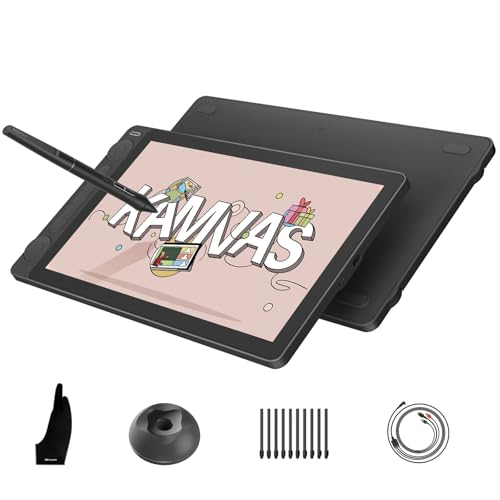
- Factory-calibrated ΔE<1.5 color accuracy
- Canvas Glass 2.0 paper-like surface
- Dual dials and 16K PenTech 4.0 stylus
Best For: Color-sensitive illustration, animation, and design
Best Workflow Flexibility

- Switches between display and tablet modes
- 16K pressure with built-in pen eraser
- 95% P3 gamut and red dial controls
Best For: Manga, animation, design, and flexible desk setups
Best Standalone Pick – XP-Pen Magic Drawing Pad
If you want a drawing tablet for artists that works without a computer, the XP-Pen Magic Drawing Pad is a versatile choice. Its 12.2-inch paper-like display, 16,384 pressure levels, and Android 14 operating system support mobile digital art and everyday entertainment.
Best For: Artists who want a portable, standalone tablet for drawing, animation, and creative work on the go.
Pros:
- Standalone Android 14 design needs no computer.
- 16,384 pressure levels, tilt support, and a battery-free stylus enable nuanced lines.
- 12.2-inch 2160 × 1440 AG-etched display offers a paper-like surface and 97% sRGB coverage.
- 8GB RAM, 256GB storage, expandable storage, and an 8,000mAh battery add flexibility.
Cons:
- May be more capability than beginners need for basic sketching.
- Its Android-based workflow may differ from a traditional computer-based setup.
The Magic Drawing Pad stands out for mobility: it combines a full creative operating system, generous storage, long battery life, and a color display in a slim 599g design.
Best Compact Computer Display – XP-Pen Artist12
The XP-Pen Artist12 is a practical drawing tablet for artists who already work on a Windows, Mac, or Linux computer. Its 11.6-inch Full HD display, customizable keys, touch bar, and battery-free pen provide a familiar pen-on-screen workflow.
Best For: Students, teachers, and digital artists seeking a compact display tablet for computer-based drawing, editing, or online instruction.
Pros:
- 1920 × 1080 IPS display supports vivid visuals with 100% sRGB coverage.
- Battery-free stylus offers 8,192 pressure levels and includes a digital eraser.
- Six customizable shortcut keys and a programmable touch bar streamline common tasks.
- Works with major creative software and supports Windows, Mac, and Linux.
Cons:
- Must be connected to a computer to work.
- Requires HDMI and USB-A ports or suitable adapters.
- The 11.6-inch screen is relatively compact for detailed projects.
Choose the Artist12 if you want an affordable, focused pen display rather than a standalone device. Its compact footprint and shortcut controls make it especially useful for learning, remote work, and everyday illustration.
Best Workflow Controls – HUION Kamvas 13 Gen 3
For artists who want a drawing tablet for artists with a larger working area and dedicated controls, the HUION Kamvas 13 Gen 3 is a strong computer-connected option. Its laminated 13.3-inch display, dual dial, and 16,384-level pen are designed for detailed creative work.
Best For: Illustrators, designers, and animators who value color accuracy, shortcut controls, and an adjustable stand.
Pros:
- Fully laminated 13.3-inch Canvas Glass 2.0 display helps reduce glare.
- 16,384 pressure levels, 2g initial activation force, and three pen buttons support controlled strokes.
- 99% sRGB coverage, Rec.709 support, and factory calibration report aid color-focused work.
- Five shortcut keys, dual dial controls, and an included adjustable stand support efficient sessions.
Cons:
- It is not standalone and must connect to a computer or compatible Android device.
- Some connections may require the included 3-in-1 cable or a separately sold full-featured USB-C cable.
- Compatibility depends on the device supporting the required USB and display standards.
The Kamvas 13 Gen 3 is a well-equipped choice for creators who want display quality and hands-on controls. The included stand and color calibration report make it particularly suitable for longer, detail-oriented workflows.
Best Beginner Drawing Pad – XP-Pen Deco 01 V3
The XP-Pen Deco 01 V3 is a straightforward drawing tablet for artists who prefer a lightweight, screenless pad. Its 10 × 6.25-inch work area, battery-free 16,384-level stylus, and eight customizable keys give beginners plenty of room to practice.
Best For: Beginners and portable creators who want a simple tablet for drawing, note-taking, and software-based art on a computer or Android device.
Pros:
- Large 10 × 6.25-inch active area provides comfortable room for strokes.
- 16,384 pressure levels and 60-degree tilt support smoother lines and shading.
- Eight customizable shortcut keys work for left- and right-handed users.
- Supports Windows, macOS, ChromeOS, Linux, and Android 10 or later.
Cons:
- Its screenless design requires looking at the connected device while drawing.
- It needs a compatible computer or Android device to function.
- Software compatibility and mapping may require driver or Android app setup.
The Deco 01 V3 keeps the learning curve manageable while still offering advanced pen sensitivity and a generous work surface. Its slim, 8mm body also makes it easy to carry between home, school, or studio.
Best Portable Pick – HUION Inspiroy H640P
The HUION Inspiroy H640P is a compact drawing tablet for artists who want precise pen control without carrying a large setup. Its 6 x 4-inch active area, battery-free stylus, and customizable keys make it practical for sketching, editing, note-taking, and everyday computer navigation.
Best For: Beginners, traveling artists, students, and creators who need a lightweight tablet for Mac, Windows, Linux, or compatible Android devices.
Pros:
- Battery-free stylus with 8,192 pressure levels and 5,080 LPI resolution.
- Six customizable press keys and two pen buttons support efficient workflows.
- Compact 0.61-pound design is convenient for travel and smaller desks.
- Works with major creative software and supports left-handed use.
Cons:
- Its 6 x 4-inch active area is smaller than larger professional tablets.
- Does not support iPhone or iPad.
The H640P is a strong value-focused choice when portability and straightforward pen control matter more than display-based drawing or a large workspace.
Best Screen Tablet – XPPen Artist 13.3 Pro V2
The XPPen Artist 13.3 Pro V2 is a screen-based drawing tablet for artists who prefer to draw directly on their work. Its fully laminated 13.3-inch display, battery-free stylus, tilt support, dial, and shortcut keys create a more hands-on setup for illustration, animation, and photo editing.
Best For: Digital artists, animators, concept artists, students, and creators who want an on-screen drawing experience connected to a computer.
Pros:
- 13.3-inch fully laminated FHD display helps reduce parallax.
- Supports up to 60 degrees of tilt and 16,384 pressure levels.
- Red dial and eight customizable keys streamline common controls.
- Wide color coverage with 88% NTSC and a 178-degree viewing angle.
Cons:
- Requires connection to a computer or laptop.
- Its screen-based design is less portable than a compact pen tablet.
Choose the Artist 13.3 Pro V2 if drawing directly on the display is a priority. It offers useful physical controls and a high-spec pen, but buyers should plan for a computer-connected workstation.
Best for Shortcuts – HUION Inspiroy H1060P
The HUION Inspiroy H1060P is a larger drawing tablet for artists who want generous working space and extensive shortcut customization. Its 10 x 6.25-inch area, battery-free tilt-support stylus, and 28 programmable controls suit detailed illustration, painting, and design workflows.
Best For: Artists, illustrators, and hobbyists who want a spacious non-display tablet with many programmable controls.
Pros:
- 10 x 6.25-inch working area provides room for broader pen movements.
- Includes 12 programmable press keys and 16 programmable soft keys.
- Battery-free stylus offers 8,192 pressure levels and up to 60 degrees of tilt.
- Symmetrical design supports right- and left-handed users.
Cons:
- Does not include a built-in screen, so drawing requires looking at the connected display.
- iPhone and iPad are not supported.
- Ubuntu use requires the Xorg display server rather than Wayland.
The H1060P is a practical choice for creators who value a larger surface and abundant shortcuts. It is especially appealing for software-heavy workflows where quick access to commands can improve efficiency.
Best with Extra Features – XP-Pen Artist 12 3rd
If you want a portable drawing tablet for artists that still feels professional, the XP-Pen Artist 12 3rd combines an 11.9-inch Full HD display with a lightweight 1.58-pound design. Its paper-feel etched glass, laminated screen, X4 pen, and dual dial wheels make it practical for sketching, illustration, and detailed design work.
Best For: Artists, students, and designers who need a compact pen display with precise color and portable controls.
Pros:
- Lightweight 1.58-pound design with an included foldable stand.
- 16,384 pressure levels, 60-degree tilt support, and low initial activation force.
- 99% sRGB coverage and factory-calibrated ΔE<1.5 color accuracy.
- Dual X-Dial wheels and eight customizable keys for efficient workflow control.
Cons:
- It is a compact 11.9-inch display, which may feel limiting for users who prefer larger canvases.
- It must connect to a compatible computer or other supported device rather than operating independently.
The Artist 12 3rd is a strong choice when portability matters without giving up a laminated, color-accurate screen or advanced pen response. Its broad operating-system compatibility also suits artists who work across different devices.
Best Color-Focused Option – HUION Kamvas 13 Gen 3
The HUION Kamvas 13 Gen 3 is a capable drawing tablet for artists who prioritize a natural surface and dependable color reproduction. Its 13.3-inch fully laminated display uses anti-sparkle Canvas Glass 2.0, while the PenTech 4.0 stylus and dual dials support precise, efficient creative work.
Best For: Illustrators, animators, and designers who want certified color accuracy, a paper-textured display, and flexible controls.
Pros:
- Canvas Glass 2.0 reduces glare, sparkle, and image noise while adding paper-like texture.
- 16,384 pressure levels, 2g initial activation force, and tilt auto-alignment support controlled strokes.
- Covers 99% sRGB/Rec.709 and 90% Adobe RGB, with factory-calibrated ΔE<1.5 accuracy.
- Two dial controllers and five press keys provide quick access to common adjustments.
Cons:
- It is not standalone and must be connected to a compatible computer or laptop.
- The dual-interface setup may require more cable planning than a simple single-cable setup.
With its calibration certificate, wide color coverage, and textured anti-glare glass, the Kamvas 13 Gen 3 is especially appealing for color-sensitive artwork. Its symmetrical design also accommodates both left- and right-handed users.
Best Workflow Flexibility – XP-Pen Artist 13.3 Pro V2
The XP-Pen Artist 13.3 Pro V2 is a versatile drawing tablet for artists who want both on-screen drawing and traditional pen-tablet operation. It pairs a fully laminated 13.3-inch FHD display with a 16K pressure stylus, red dial roller, shortcut keys, and a foldable stand.
Best For: Manga artists, animators, graphic designers, and creators who want dual operating modes and broad device compatibility.
Pros:
- Switches between pen-display mode and pen-tablet mode for different workflows.
- 16,384 pressure levels, low activation force, and a built-in digital eraser.
- Fully laminated screen with 99% sRGB, 89% Adobe RGB, and 95% P3 coverage.
- Red dial roller, eight shortcut keys, and included foldable stand support efficient sessions.
Cons:
- It is not standalone and requires a compatible computer or laptop.
- The full-featured USB-C connection requires a compatible USB-C port; traditional HDMI connectivity uses a separately sold 3-in-1 cable.
The Artist 13.3 Pro V2 stands out for creators who want a flexible setup rather than a display-only tablet. Its dual modes, wide color gamut, and physical controls make it well suited to both detailed artwork and longer editing sessions.
How We Picked the Best Drawing Tablet for Artists
We selected these tablets to represent the main ways artists work: standalone drawing, direct-on-screen creation, and traditional screen-free pen input. We considered pressure sensitivity, pen technology, active area, shortcut controls, display specifications, connection requirements, compatibility, portability, and likely use cases.
Specifications such as pressure-level counts can be useful, but they do not determine the entire drawing experience. Pen accuracy, reduced parallax, surface feel, driver stability, ergonomics, and the quality of the included accessories also matter.
Quick Comparison
| Tablet Type | Best For | Main Advantage | Potential Limitation |
|---|---|---|---|
| Standalone | Portable artists | Works without a computer | Usually costs more |
| Pen display | Illustrators and designers | Draw directly on the screen | Needs a compatible device |
| Screen-free tablet | Beginners and budget buyers | Affordable and compact | Requires hand-eye adjustment |
Key Buying Factors for a Drawing Tablet for Artists
Tablet Type and Connectivity
A standalone model is the most flexible choice for travel or working away from a desk. Pen displays require a computer, phone, or other compatible host device, so check connection requirements before buying. Screen-free tablets are typically the simplest and most affordable option for a desktop setup.
Active Area and Screen Size
A larger active area gives you more room for broad strokes and detailed compositions, while a compact tablet is easier to carry and can suit smaller desks. For pen displays, consider resolution, viewing angles, laminated construction, anti-glare treatment, and whether the screen size fits your preferred software layout.
Pen Performance and Controls
Battery-free pens reduce charging interruptions. Higher pressure sensitivity can help with expressive linework, but consistent tracking and tilt support may matter more in everyday use. Dial controls and programmable keys can speed up zooming, brush-size changes, undo commands, and navigation.
Compatibility and Comfort
Confirm support for your operating system and creative applications, including Windows, macOS, ChromeOS, Android, or other platforms listed by the manufacturer. Also consider the stand, cable arrangement, glove, surface texture, and how long you typically draw in one session.
Who Should Buy Which Drawing Tablet for Artists?
- Choose a standalone tablet if portability and computer-free drawing are your priorities.
- Choose a pen display if you want the most direct, paper-like screen interaction and already have a compatible computer.
- Choose a screen-free tablet if you want strong value, a lightweight setup, or a reliable first tablet for digital art.
- Choose a larger tablet with shortcut keys if you use complex software and want faster access to frequent commands.
- Choose a compact model if desk space, travel, or occasional editing matters more than maximum drawing area.
Before ordering, verify the latest compatibility details, included cables, display accessories, and return policy. The right choice is the one that fits your software, workspace, and drawing habits—not simply the model with the highest specification.