The best wireless drawing tablets give artists more freedom to work without being tethered to a USB cable. This roundup compares compact Bluetooth models, larger professional pen tablets, and standalone options that do not require a computer.
We focused on pen response, wireless connectivity, shortcut controls, portability, software compatibility, and overall value so you can choose a tablet that fits your workflow and experience level.
Best 10 Wireless Drawing Tablets Picks for 2026
Best Compact Pick

- Battery-free 4,096-level pen
- Bluetooth and USB-A connectivity
- Four ExpressKeys and broad compatibility
Best For: Students and creators needing a compact wireless tablet
Best Standalone Option

- Standalone Android 14 tablet
- 12.2-inch paper-like color display
- 16,384-pressure-level tilt stylus
Best For: Artists who want computer-free, mobile drawing
Best Larger Wacom Surface

- 8.5-by-5.31-inch active area
- Battery-free 4,096-level pen
- Bluetooth, USB-A, and four ExpressKeys
Best For: Computer-based creators wanting more drawing room
Best Shortcut-Key Value

- Bluetooth 5.0 wireless connection
- Eight customizable shortcut keys
- 8,192-level battery-free stylus
Best For: Cross-platform users who prioritize workflow shortcuts
Premium Pro Pick

- Pro Pen 3 with 8,192 pressure levels and tilt support
- 10 ExpressKeys plus 2 mechanical dials
- Bluetooth or USB connectivity for flexible setups
Best For: Professional creative workflows
Best Value Wireless Option

- Bluetooth 5.0 and USB Type-C connectivity
- 16,384-pressure-level battery-free pen
- Dial, 8 shortcut keys, and up to 18-hour battery life
Best For: Students, teachers, and flexible everyday creators
Best for Shortcut-Heavy Workflows

- 40 programmable functions across 5 key sets
- Two battery-free pens and OLED key display
- Wireless support for Windows, Mac, and Linux
Best For: Artists using multiple creative applications
Compact Classic
Wacom Intuos Wireless Drawing Tablet

- Bluetooth connection for compatible Mac and Windows computers
- 4096 pressure levels with a battery-free pen
- Compact 6.0-by-3.7-inch active area and four ExpressKeys
Best For: Small desks, beginners, and everyday drawing or photo editing
Flexible Value Pick
XP-Pen Deco mini7W Wireless Tablet
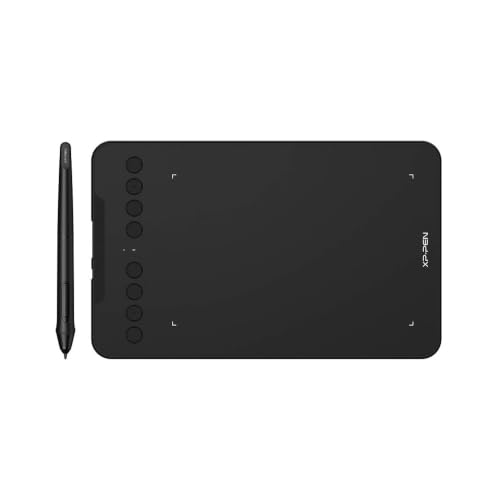
- Bluetooth 5.0 and wired USB-C connection options
- 16,384 pressure levels with 60-degree tilt support
- Eight customizable keys and broad device compatibility
Best For: Multi-device users, online teaching, and portable creative work
Mobile-Ready Upgrade
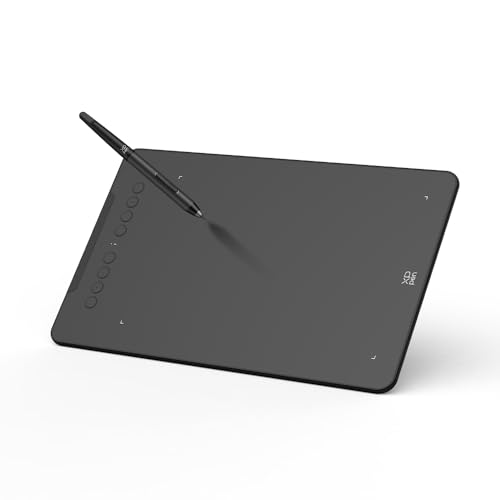
- Bluetooth 5.0 with up to 13 hours of stated wireless work
- 16,384 pressure levels, 60-degree tilt, and eight shortcut keys
- Android active-area mapping helps prevent screen-ratio distortion
Best For: Mobile-focused artists and creators using multiple operating systems
Best Compact Pick – Wacom Intuos Small Bluetooth
The Wacom Intuos Small is a practical choice for shoppers seeking wireless drawing tablets for digital art, photo editing, note-taking, or online teaching. Its compact active area, battery-free pen, Bluetooth connectivity, and four ExpressKeys make it easy to use at a desk or while working away from one.
Best For: Students, teachers, and creators who want a compact wireless tablet for general digital work.
Pros:
- Bluetooth and USB-A connectivity provide flexible setup options.
- Battery-free pen offers 4,096 pressure levels and a pen-on-paper feel.
- Four ExpressKeys support customizable shortcuts.
- Works with Mac, Windows, and Chromebook devices.
Cons:
- The 6-by-3.7-inch active area is relatively compact.
- It requires a compatible computer or Chromebook rather than operating independently.
The Small Intuos is well suited to portable, everyday creative tasks. Choose it when desk space and portability matter more than having a larger drawing surface.
Best Standalone Option – XPPen Magic Drawing Pad
The XPPen Magic Drawing Pad stands apart from most wireless drawing tablets because it operates without a computer. Its 12.2-inch paper-like display, Android 14 platform, high-pressure stylus, and built-in storage make it a flexible option for artists who want a mobile creation device.
Best For: Digital artists who want a standalone drawing and entertainment tablet with a large color display.
Pros:
- Standalone Android 14 design does not require a computer.
- 12.2-inch 2160-by-1440 display offers a paper-like drawing experience.
- X3 Pro stylus provides 16,384 pressure levels and 60-degree tilt recognition.
- 8GB RAM, 256GB storage, and expandable storage support mobile workflows.
Cons:
- It is heavier and larger than a conventional screenless tablet.
- Its Android-based workflow may differ from desktop creative software setups.
- The stylus and device still require charging or power management, unlike a battery-free pen tablet.
For artists who prioritize mobility and direct on-screen drawing, the Magic Drawing Pad is the most self-contained option here. Its cameras, apps, and long stated battery life also make it more versatile than a dedicated computer accessory.
Best Larger Wacom Surface – Wacom Intuos Medium
The Wacom Intuos Medium is a strong fit for shoppers comparing wireless drawing tablets and wanting more room than a compact model provides. It combines an 8.5-by-5.31-inch active area with Bluetooth, a battery-free pressure-sensitive pen, and software support for common creative and productivity tasks.
Best For: Creators, students, and office users who prefer a larger drawing surface while working with a computer.
Pros:
- Larger active area provides more room for drawing and editing.
- Bluetooth and USB-A support wireless or wired use.
- Battery-free pen offers 4,096 pressure levels.
- Four ExpressKeys provide quick access to shortcuts.
Cons:
- It is less compact and heavier than the Small Intuos.
- It requires a Mac or PC for operation.
- Its listed compatibility does not include Chromebook.
The Medium Intuos is the better Wacom choice when control space is more important than minimal size. It keeps the straightforward pen-tablet workflow while offering a more comfortable canvas for longer sessions.
Best Shortcut-Key Value – XPPen Deco MW
The XPPen Deco MW is a versatile wireless drawing tablet for users who want a generous 8-by-5-inch work area and plentiful shortcut controls. Bluetooth 5.0, an 8,192-level battery-free stylus, and compatibility with Windows, Mac, Chrome OS, Linux, and Android give it broad appeal.
Best For: Artists, students, and multitaskers who value shortcut keys and cross-platform compatibility.
Pros:
- Bluetooth 5.0 enables cable-free use.
- Eight customizable shortcut keys can speed up creative workflows.
- X3 stylus provides 8,192 pressure levels and 60-degree tilt support.
- Supports Windows, Mac, Chrome OS, Linux, and Android.
Cons:
- It is a screenless tablet and must connect to a compatible device.
- The supplied notes do not specify a built-in display or standalone operation.
The Deco MW offers a useful balance of active-area size, wireless convenience, and physical controls. It is especially compelling for users switching between operating systems or relying heavily on keyboard-style shortcuts.
Premium Pro Pick – Wacom Intuos Pro Medium
The Wacom Intuos Pro Medium is a professional wireless drawing tablet for artists, animators, designers, and other creatives who want precise pen control plus hands-on shortcuts. Its Bluetooth connectivity, Pro Pen 3, customizable ExpressKeys, and mechanical dials make it well suited to demanding desktop workflows.
Best For: Professional animation, illustration, photo, video, and 3D work where precision and shortcut control matter.
Pros:
- Pro Pen 3 offers 8,192 pressure levels, tilt support, and customizable grip and button options.
- Ten ExpressKeys and two mechanical dials provide quick access to frequently used commands.
- Bluetooth supports wireless use with multiple computers, while the medium format provides a generous active area in a compact footprint.
- Durable magnesium construction and a slim 4mm profile suit both desk and portable use.
Cons:
- Its professional feature set may be more than beginners need.
- Wireless use requires Bluetooth-compatible computers and the tablet still supports USB connections when needed.
The Intuos Pro Medium stands out for creators who prioritize refined pen performance and efficient controls. It is a strong premium option for a modern multi-monitor setup, particularly if customizable ergonomics and physical dials are valuable to your workflow.
Best Value Wireless Option – GAOMON WH851
The GAOMON WH851 is a versatile wireless drawing tablet that combines an 8-by-5-inch active area with a central dial and eight customizable keys. Bluetooth 5.0, a battery-free pen, and compatibility with Windows, Mac, and Android make it a practical choice for drawing, annotation, and other creative tasks.
Best For: Students, teachers, and creators seeking flexible wireless functionality with tactile controls at a practical feature level.
Pros:
- Bluetooth 5.0 wireless operation is complemented by USB Type-C wired connectivity.
- The battery-free AP519 pen provides 16,384 pressure levels and 60-degree tilt support.
- A programmable dial and eight shortcut keys help speed up zooming, scrolling, and brush adjustments.
- Up to 18 hours of battery operation supports extended wireless sessions.
Cons:
- The included warranty is one year, shorter than some professional alternatives.
- The listed operating-system support differs between wired and wireless use, so compatibility should be checked before purchase.
With its high pressure sensitivity, useful dial, and broad device compatibility, the WH851 offers a balanced wireless drawing tablet setup. It is especially appealing when shortcut controls and Android support are more important than premium professional construction.
Best for Shortcut-Heavy Workflows – Xencelabs Medium
The Xencelabs Drawing Tablet Medium is a wireless drawing tablet designed around extensive shortcut customization. Its 40 programmable quick-key functions, OLED assignment display, textured surface, two battery-free pens, and support for Windows, Mac, and Linux make it well suited to creators who want to tailor controls for different applications.
Best For: Digital artists and professionals who use many application-specific shortcuts and want a comfortable, adaptable pen tablet.
Pros:
- Five sets of eight programmable keys provide up to 40 functions per application.
- An OLED display shows key assignments, helping you keep track of customized controls.
- Two battery-free pens with different diameters offer flexibility for different drawing styles.
- The frosted, non-slip surface and 6.5-degree slope are designed for a pen-on-paper feel and comfortable wrist positioning.
Cons:
- At 2 kg, it is considerably less portable than many smaller tablets.
- Its extensive shortcut system may require setup time before it improves your workflow.
- The listed pressure sensitivity is 8,192 levels, lower than the GAOMON WH851’s specification.
The Xencelabs Medium is a strong choice when customizable controls are central to your process. Its large shortcut system, dual pens, and broad operating-system support make it particularly compelling for artists moving between multiple creative applications.
Compact Classic – Wacom Intuos Wireless Drawing Tablet
The renewed Wacom Intuos is a compact option for shoppers seeking wireless drawing tablets for drawing, painting, or photo editing. Its Bluetooth connection, battery-free pen, and four programmable keys make it practical for smaller desks and everyday creative work.
Best For: Beginners, students, and creators who want a compact Wacom tablet for desktop or laptop use.
Pros:
- Bluetooth connectivity works with compatible Windows and Mac computers.
- 4096 pressure levels provide control for drawing, painting, and photo editing.
- Compact design includes a 6.0-by-3.7-inch active area and supports left- or right-handed setup.
- Four customizable ExpressKeys keep common shortcuts within reach.
Cons:
- As a renewed product, condition may vary from a brand-new unit.
- The smaller active area may feel limiting for users who prefer broad hand movements.
Choose this model when desk space and straightforward wireless operation matter more than a larger work surface. It also includes the original accessories and a one-year manufacturer warranty according to the supplied details.
Flexible Value Pick – XP-Pen Deco mini7W Wireless Tablet
The XP-Pen Deco mini7W is one of the more flexible wireless drawing tablets for users who switch between computers and mobile devices. Bluetooth 5.0, a USB connection option, eight shortcut keys, and broad operating-system support make it useful for creative work, teaching, and remote tasks.
Best For: Students, teachers, and creators who need wireless and wired connectivity across multiple device types.
Pros:
- Supports Bluetooth 5.0 as well as wired USB-C connectivity.
- Battery-free pen offers 16,384 pressure levels and 60-degree tilt support.
- Eight customizable keys can be tailored to a creative workflow.
- Compatible with Windows, macOS, Android, ChromeOS, and Linux.
Cons:
- The supplied details do not specify the tablet’s battery runtime.
- Its 7-by-4-inch listed active area may be modest for large-format work.
This is a strong choice if connectivity and platform flexibility are priorities. The included adapters and extra nibs also make it easier to use the tablet with different setups out of the box.
Mobile-Ready Upgrade – XP-Pen Deco mini7W V2
The XP-Pen Deco mini7W V2 is designed for creators who want wireless drawing tablets with stronger mobile support. Bluetooth 5.0, up to 13 hours of stated continuous work, precise Android mapping, tilt support, and eight shortcut keys give it a versatile feature set for illustration, editing, and digital notes.
Best For: Digital artists and students who create across Windows, Mac, Android, ChromeOS, or Linux devices.
Pros:
- Bluetooth 5.0 offers wireless use, while the L-shaped USB-C cable supports wired sessions.
- Battery-free stylus provides 16,384 pressure levels and 60-degree tilt support.
- Dedicated app-based active-area adjustment is intended to reduce distortion on Android devices.
- Eight customizable shortcut keys support drawing, editing, teaching, and note-taking workflows.
Cons:
- Reported operating-system details conflict on pressure sensitivity, listing both 8,192 and 16,384 levels.
- iOS support is limited to use through ibis Paint according to the supplied notes.
The V2 stands out for mobile mapping and longer wireless sessions, while its wired mode offers a practical fallback for extended work. Consider it if Android compatibility and portable flexibility are more important than a larger tablet surface.
How We Picked the Best Wireless Drawing Tablets
We compared these Wireless Drawing Tablets across the features that most affect everyday creative work: connection reliability, pen pressure sensitivity, tilt support, active area, shortcut controls, battery requirements, software compatibility, and portability. We also considered whether each model is designed for beginners, frequent travelers, serious hobbyists, or professional artists.
Bluetooth support is useful for reducing desk clutter, but wireless performance should not come at the expense of a stable connection or responsive pen tracking. Standalone tablets were evaluated separately because they offer a different experience from pen tablets that rely on a Mac or PC.
Quick Comparison
| Best For | What to Look For | Recommended Type |
|---|---|---|
| Beginners | Simple setup, bundled software, affordable price | Small entry-level Bluetooth tablet |
| Illustrators and designers | Larger active area, tilt support, customizable controls | Medium wireless pen tablet |
| Photo editors | Precise pressure response and shortcut keys | Tablet with dial or programmable buttons |
| Traveling artists | Compact size, Bluetooth, battery-free stylus | Small wireless tablet |
| Computer-free drawing | Built-in display, operating system, and storage | Standalone drawing tablet |
Key Buying Factors for Wireless Drawing Tablets
Active Area and Size
A larger active area provides more room for broad strokes and can feel more natural for illustration, but it also takes up more desk space. Small tablets are easier to carry and can work well with laptops or limited workspaces. Medium models are often the best balance for general creative work.
Wireless Connection and Power
Check whether the tablet uses Bluetooth, a proprietary wireless receiver, or both. Battery-free pens are convenient because they do not need charging, while the tablet itself may still require periodic charging or a wired connection. Confirm the operating system and driver requirements before buying.
Pressure, Tilt, and Pen Feel
Higher pressure-level ratings can provide fine control, but real-world pen feel also depends on calibration, nib friction, and software support. Tilt recognition is particularly useful for shading and brush-based applications. Look for a comfortable stylus with replaceable nibs if you draw frequently.
Shortcut Controls
Express keys, dials, and customizable buttons can speed up zooming, undoing, changing brush size, and switching tools. If you use a tablet mainly for occasional edits, a simpler model may be preferable; artists with complex workflows should consider more controls.
Who Should Buy Which Wireless Drawing Tablets?
Choose a compact entry-level model if you are learning digital art, editing photos, or need a portable tablet for a laptop. Choose a medium professional tablet if you draw regularly and want more room, better ergonomics, and customizable controls. Choose a model with a dial or many shortcut keys if you want to minimize keyboard use during long sessions. Choose a standalone drawing tablet if you need to sketch without connecting to a computer.
Before purchasing, verify current driver support for your operating system and confirm compatibility with applications such as Photoshop, Clip Studio Paint, Illustrator, Krita, or your preferred creative software.